


Hisense TV Remote
3.9105.00 Reviews
App Specs
- Version
- 1.0.12mts
- Updated On
- License
- Free
- Downloads
- 100,000+
- Developer
- Mobile Tools Shop
- Categories
- House & Home
- Platform
- Android
Screenshots
 Analysis by AppCompare
I tend to judge a TV remote app less by how many buttons it puts on a screen and more by whether it makes ordinary viewing less fiddly. Hisense TV Remote is aimed at one clear job: using a phone to control a Hisense television. That can be genuinely useful when the original handset has gone missing, but it also changes the routine in small ways that are worth considering before you rely on it as your everyday controller.
A practical routine, not a replacement for every remote
The simplest way to approach a phone remote is as a backup you can reach for quickly, rather than assuming it will improve every part of watching TV. A typical evening might start with the physical remote, then switch to the phone when you need to enter text, navigate menus, or adjust something from the sofa while the handset is across the room. Keeping both options available is often more comfortable than trying to make one device do everything.
That distinction matters because a phone and a conventional remote solve different problems. A physical remote is already in your hand and has tactile buttons; a phone gives you a screen-based control surface that can be easier to access when the remote is misplaced. I would especially consider this app for a household where the remote regularly gets buried in blankets or ends up on another floor, but not as a guaranteed substitute if you need a controller that works independently of your home network.
Check the connection before settling in
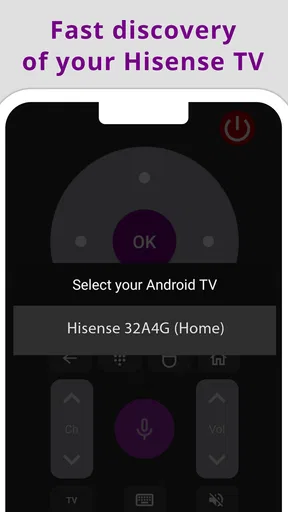
The first useful habit is to check that the television and phone are on the same Wi-Fi network before starting a viewing session. If the TV does not appear, I would verify the network connection on both devices before repeatedly tapping around in the app. That small check can save time and helps separate a connection problem from a control problem.
It is also sensible to keep the phone somewhere easy to reach and avoid letting its battery run down if you depend on it as your backup. This sounds obvious, but a phone remote is only convenient when the phone itself is available, awake, and connected. For a shared living room, leaving the original remote in its usual place while using the app for occasional tasks avoids turning a low phone battery or a disconnected device into a reason the TV cannot be controlled.
Build a repeatable way to use it
Experienced users can make a remote app feel less awkward by keeping their actions simple and repeatable. I would use the same approach each time: open the app, confirm the TV is reachable, then use the controls for the task at hand rather than exploring menus while a show is paused. If a particular action involves several steps, learning that sequence once is easier than improvising every time.
This is also where phone control can be useful beyond emergencies. If you are already holding your phone while deciding what to watch, using it to navigate the TV can avoid switching back and forth between devices. On the other hand, if all you want is a quick volume adjustment, reaching for a physical remote with familiar buttons may still be faster. The better choice depends on the task, not on whether one kind of controller is universally superior.
Worth Reading Before You Choose

EA SPORTS FC Mobile 26 Is a Bigger Football Game, but It Takes Time

Flipboard Shows What News Apps Must Do Beyond the Feed

Switching to Android Auto Means Rethinking Your Driving Routine

Google Calendar Makes a Crowded Week Easier to Manage

Ludo King Makes the Most of the Minutes Between Plans

Baby Panda World Brings Quick Play to Modern Phones, but Its Game Library Feels Busy
Know where a phone remote can fall short
Network-based control has a basic trade-off: it depends on the phone and TV being able to communicate over Wi-Fi. That makes the app less dependable as your sole option if your home network is unreliable, or if you need control when the phone is disconnected. It is worth keeping a working physical remote available for setup and for situations where the app cannot reach the television.
There is another practical difference from a button remote: a phone screen gives less tactile feedback. You may need to look down to find a control, and repeated adjustments can feel slower when you cannot identify buttons by touch. If you watch in a dark room or prefer to keep your phone put away, this kind of controller may not suit your habits as well as a traditional remote.
Getting Started with the Hisense TV Remote
First things first, setting up the Hisense TV Remote app is a breeze. Available for both Android and iOS, you just need to download it from your respective app store. Once installed, connect your smartphone to the same Wi-Fi network as your Hisense TV. The app automatically detects your TV model, and voilà, you’re ready to go.
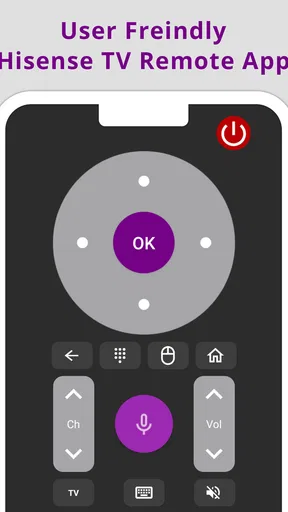
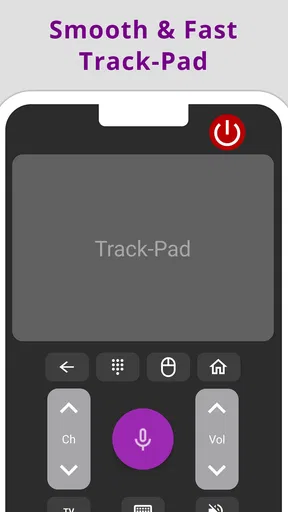
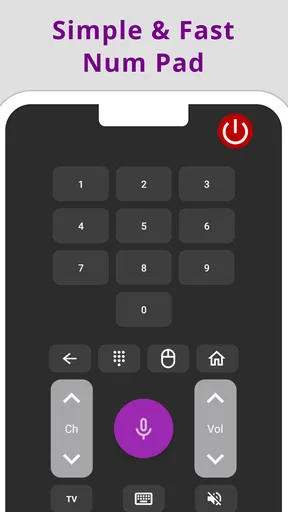
The interface is sleek and intuitive, mirroring a physical remote control layout. All the essential buttons are there—power, volume, channel, and even a nifty touchpad for navigating smart TV features. The app supports multiple TV models, so whether you have a brand-new unit or a slightly older model, you’re covered.
Features That Stand Out
What makes the Hisense TV Remote app stand out is its wide array of features. The app doesn’t just replace your lost remote; it enhances your TV watching experience. Here are some highlights:
- Voice Control: Ever wished you could just tell your TV what to do? With this app, you can. The voice control feature allows you to search for content or control your TV with just your voice. It’s like having your own personal assistant.
- Smart TV Integration: The app seamlessly integrates with your smart TV functions. Whether you want to browse the web, access streaming services, or play games, it’s all just a tap away.
- Customizable Interface: You can customize the app interface to suit your preferences. Rearrange buttons, add shortcuts, and make it your own.
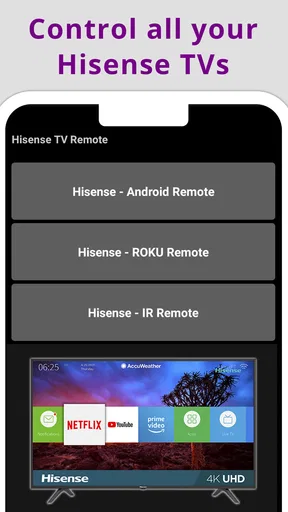
- Multiple Device Support: The app allows you to control multiple Hisense TVs in your home. No need for separate remotes anymore!
How It Performs in Real Life
In terms of performance, the Hisense TV Remote app is quite impressive. The response time is quick, with minimal lag between pressing a button on the app and the action occurring on the TV. The app’s stability is also noteworthy; during my testing, I didn’t experience any crashes or connectivity issues.
One thing I really appreciated was the app's ability to remember my settings and preferences. Even after closing and reopening the app, everything was exactly where I left it. It’s these little conveniences that make the app a joy to use.
Room for Improvement
While the Hisense TV Remote app is robust, it’s not without its quirks. The voice control feature, while fantastic, can sometimes misinterpret commands, especially in noisy environments. It’s not a dealbreaker, but something to be aware of.
Additionally, the app requires a stable Wi-Fi connection to function properly. If your internet is spotty, you might encounter some hiccups. But hey, that’s more of a network issue than a fault of the app itself.
One feature I’d love to see in future updates is integration with smart home systems. Imagine controlling your TV alongside other smart devices in your home setup—now that would be next-level convenience.
Who will get the most from it
In a household with more than one Hisense television, the ability to control multiple sets from one app can be handy, particularly when moving between rooms. I would take a moment to identify which TV is selected before using a control, especially if two sets are within reach on the same home network. A habit of checking the active device is more useful than assuming the app will always be pointed at the screen you mean.
The app is also a sensible option for someone who often uses a phone while watching. If you are already searching for a show or sending a message, having TV controls on that same device can reduce the little back-and-forth of picking up another controller. It is less compelling for a viewer who wants physical buttons, quick blind volume changes, or a remote that every member of the household can use without unlocking and opening a phone.
Compared with a universal physical remote, this app avoids keeping another piece of hardware around, but it is specifically presented as a controller for Hisense TVs rather than a general controller for every brand in the room. Compared with the TV maker’s own handset, it trades tactile familiarity for a phone interface and network dependence. I would choose based on what is actually inconvenient in your home: misplaced remotes favour the app, while unreliable Wi-Fi or frequent one-handed use favours keeping a physical remote close.
Small habits that make control smoother
When several people share the television, agree on one simple routine: leave the physical remote in a known spot and treat the app as a second route, not an invisible replacement everyone assumes is available. That avoids the familiar moment when someone has the phone, someone else has the handset, and nobody knows which one is connected. It also gives guests an easy option without requiring them to learn a phone-based control layout.
For text entry or browsing through smart TV menus, the touchpad may be more comfortable than repeatedly tapping directional controls. For a one-step task such as changing volume, the physical remote may remain quicker. I would use the app where the phone interface helps, rather than forcing every interaction through it simply because it is installed. That task-by-task approach is a practical way to benefit from the app without letting it add steps to ordinary viewing.
Voice control can be useful when your hands are occupied, but I would treat it as an occasional shortcut rather than the most reliable way to navigate every situation. A noisy room can make spoken commands less dependable, so a tap or button press is the safer fallback when precision matters. If you are watching with other people, using voice commands may also be less convenient than quietly making an adjustment on the screen.
Cost, compatibility, and the sensible fallback
Hisense TV Remote is a free House & Home app from Mobile Tools Shop. It has a 3.7 average from around 825 ratings, with over 100K installs, and is rated for Everyone. The release date is June 26, 2018, and the current version is 1.0.12mts; it requires Android 6.0 or later. In-app purchases range from $0.99 to $23.99 per item, so I would check the purchase details in the app before paying for anything rather than assuming every option is included at no cost.
The key question before relying on it is straightforward: can your particular Hisense TV be found and controlled on your home network? The app’s setup is built around that connection, so I would test it while the regular remote is still available. If it connects reliably, you have a useful backup and an alternative interface; if it does not, a physical remote remains the dependable choice. That quick test is especially worthwhile before putting the original remote away or buying anything based on the expectation that a phone alone will cover every need.
Final Thoughts
All in all, the Hisense TV Remote app is a solid companion for any Hisense TV owner. It’s a lifesaver when your physical remote is out of reach and offers features that a traditional remote simply can’t match. If you’re someone who loves convenience and hates searching for lost remotes, this app is definitely worth a download.
Whether you’re tech-savvy or just someone who loves watching TV, the Hisense TV Remote app caters to every need with ease and efficiency. So, go ahead, give it a whirl, and say goodbye to the days of missing remotes!
Pros
- Easy to set up and use.
- Supports multiple Hisense models.
- Intuitive user interface.
- Customizable remote layout.
- Quick response time.
Cons
- Limited to Hisense TVs only.
- Requires stable Wi-Fi connection.
- Occasional connectivity issues.
- No voice control feature.
- Lacks advanced settings for power users.
FAQs for Hisense TV Remote
What features does the Hisense TV Remote app offer?
The Hisense TV Remote app provides a seamless way to control your Hisense Smart TV. Key features include easy navigation with a virtual remote, access to apps and settings, volume and channel control, and voice command functionality. It also supports multiple device connections, allowing you to manage different TVs from one app.
Is the Hisense TV Remote app compatible with all Hisense TV models?
The app is compatible with most recent Hisense Smart TV models. However, compatibility can vary based on the specific model and the firmware version of your TV. It's recommended to check the app's description in your device's app store for a detailed list of compatible models before downloading.
Do I need an internet connection to use the Hisense TV Remote app?
Yes, the app requires an internet connection, as it connects to your TV via Wi-Fi. Ensure that both your mobile device and Hisense TV are connected to the same Wi-Fi network for optimal performance. This is necessary for features like app navigation and voice commands.
Are there any costs associated with using the Hisense TV Remote app?
The Hisense TV Remote app is free to download and use. There are no hidden subscription fees or in-app purchases required to access its features. However, ensure to download it from the official app store to avoid any unauthorized versions that might incur costs.
What should I do if the Hisense TV Remote app is not working properly?
If the app is not functioning correctly, first ensure that your mobile device and TV are on the same Wi-Fi network. Restarting both devices can often resolve connectivity issues. If problems persist, check for updates in the app store or visit the Hisense support page for troubleshooting assistance.


